Tutorial 8 of 8
Collision-free path planning and reachability maps
Intermediate 12 min
Let Kinetica find a way around obstacles, time it within the joint limits, insert the via points into the program, and map where the robot can reach.
Kinetica is a simulation. A planned path avoids the simplified capsule and box model of the robot and the cell; it does not control a robot. Check every motion on the real controller with reduced speed and the cell safety system active.
Open the example
Open File → New project… and choose the template Path planning around a wall. A 6-axis arm moves from Station A to Station B, and a wall stands in between. The direct PTP move from Station A to Station B goes straight through the wall: the links turn red while you play the program, and the timeline shows a red mark.
Plan a path around the obstacle
- Click Plan collision-free path… in the tool palette (or Program → Plan collision-free path…).
- Kinetica proposes the move into the selected waypoint: Start 2. Station A (PTP) and Goal 3. Station B (PTP). Either can also be Current pose.
- Keep Safety margin (mm) at 5, Velocity limit (%) and Acceleration limit (%) at 100, and click Plan path.
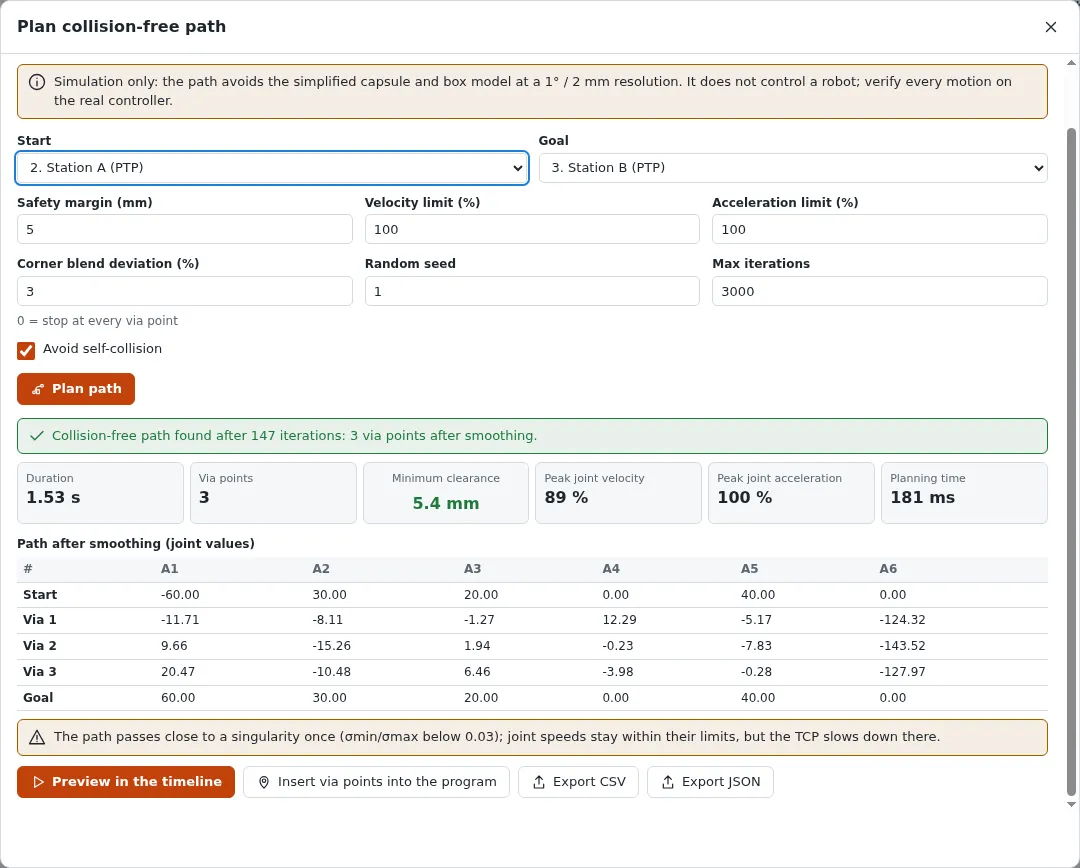
The result shows the Duration, the number of Via points, the Minimum clearance of every sample of the timed motion, the Peak joint velocity and Peak joint acceleration as a share of the limits, and the joint values of the path after smoothing. Warnings appear underneath, for example when the path passes close to a singularity.
How it works, in short:
- a seeded RRT-Connect search grows two trees in joint space, one from the start and one from the goal, until they meet; the same Random seed always gives the same path;
- shortcut smoothing removes detours, and every remaining segment is checked at 1° per revolute and 2 mm per prismatic joint;
- the corners are rounded within the Corner blend deviation (%), and the motion is timed so that no joint exceeds its velocity or acceleration limit. With 0 % the robot stops at every via point.
If no path is found, the dialog says so and how many iterations it tried. That is not a proof that no path exists: raise Max iterations, try another seed or reduce the margin.
Preview, insert, export
- Preview in the timeline plays the planned motion in the 3D view. The status bar shows Planned path preview; click it to return to the program.
- Insert via points into the program adds PTP waypoints Via 1, Via 2, … before the goal. The program is re-planned and re-checked: the red mark disappears. This works when the start is the waypoint directly before a PTP goal, because PTP moves follow the same straight joint-space segments.
- Export CSV and Export JSON save the timed trajectory with joint positions, velocities and accelerations.
Obstacles from CAD files
File → Import obstacle mesh (STL, OBJ, PLY)… reads a mesh with the same parser as Renderloom and adds it as one box obstacle: an Axis-aligned bounding box or an Oriented bounding box (principal axes). Set the File units and an offset. The box always contains the whole part, so hollow or L-shaped parts block more space than they really occupy — split them or add boxes by hand. The palette also has Add cylinder obstacle for columns and pipes.
Reachability map
Click Reachability map… in the palette. Choose a Plane (vertical x–z or y–z, or horizontal x–y), its Plane offset (mm) or Through the TCP, and click Draw map.
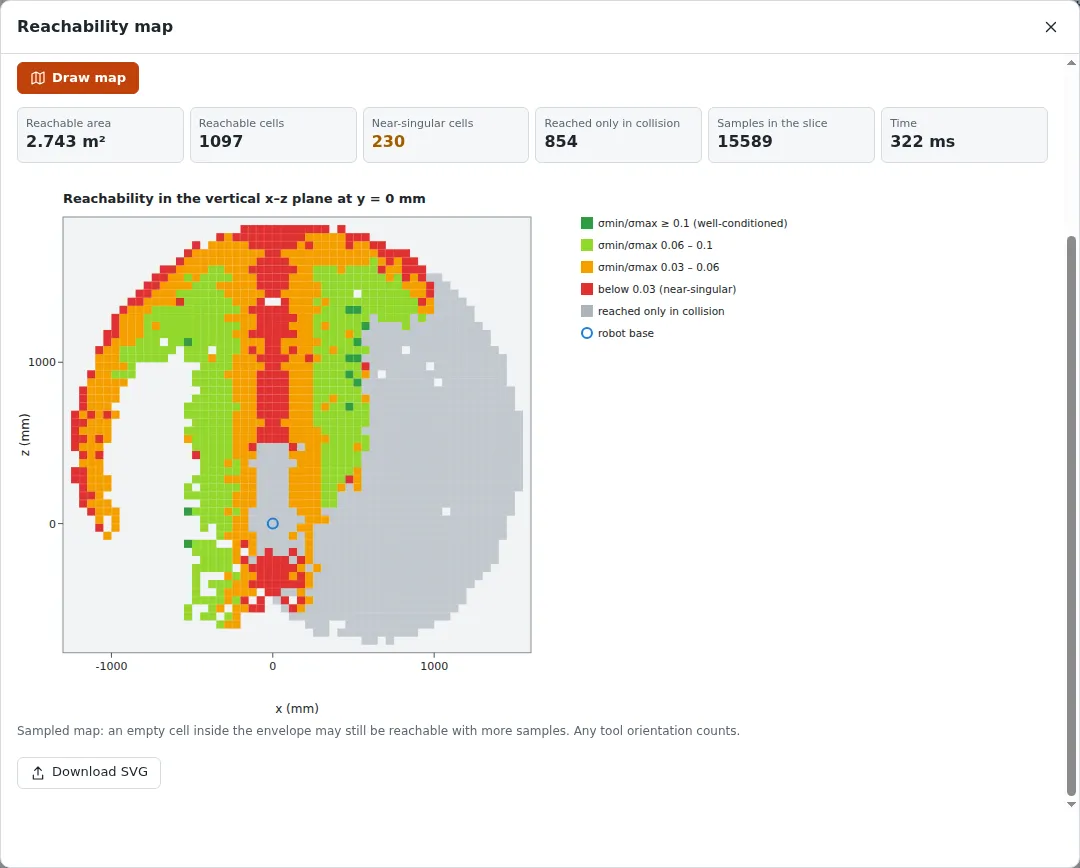
Every cell is coloured by the best manipulability (σmin/σmax) found there; red cells are reached only near a singularity. With Count only collision-free poses ticked, grey cells are reached only in collision with the cell obstacles or the robot itself. The map is sampled: an empty cell inside the envelope may still be reachable with more samples. Download SVG saves the map.
The same functions are available as API and MCP tools: kinetica-path-planner and kinetica-workspace-map.
Next: [Automate with the API and MCP](07-automate-with-the-api-and-mcp).
Ready to try it?